Guides / Writing
How to write a YouTube script in your own voice with AI
A script written by AI in one go usually reads like every other AI script: a loud greeting, three tidy points and a call to action nobody would say out loud.
You get a better result by treating the AI as a writing partner that works one move at a time. This guide shows that workflow in the Cuely Script Studio.
Start from a real title, not a blank page
The agent drafts from your title, so the title decides how good the draft can be. Take it from your Roadmap or from a saved idea, and press Start script. You land in the editor with the Writing Agent open next to an empty page.
A title that already contains a promise ("Three openings that keep viewers past 30 seconds") gives the agent something to hold on to. A title that is only a topic ("YouTube intros") gives you a generic draft.
Pick a move, not a prompt
The Writing Agent starts with five moves instead of an empty chat box. Each one does a single, clearly named job:
- Full script drafts the whole script from your title.
- Stronger hook rewrites the opening ten to fifteen seconds.
- Expand section turns your notes into a full beat.
- Continue script writes the next part from where you stopped.
- Edit & continue cuts the script at your cursor and rewrites from there.
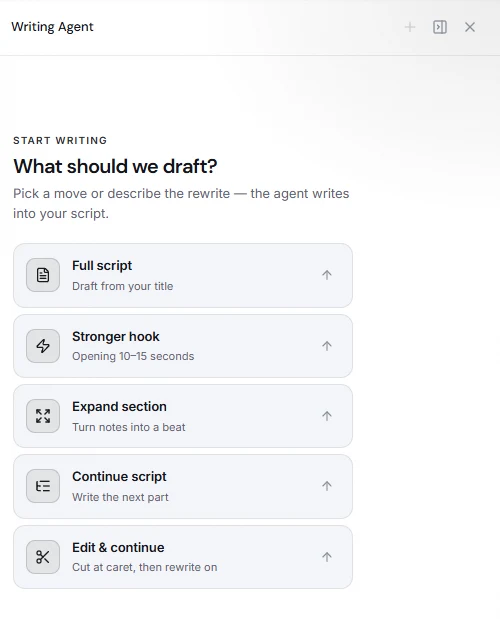
You can still type a request in the box at the bottom. The moves are shortcuts for the jobs you will repeat in every script.
Write the hook first, on its own
Most viewers decide in the opening seconds whether to stay, so give the hook its own pass. Run Stronger hook, read what it gives you, and keep it only if it sounds like something you would actually say. If not, run it again or rewrite the line yourself.
Good hooks start on the tension or the payoff: the result, the mistake, the surprising number. They do not start with a greeting or a channel introduction. If the draft opens with "Hey guys, welcome back", cut it before you read on.
Then work section by section
Write short notes for each section, as bullet points in your own words, and use Expand section to turn each set of notes into a beat. Your notes carry the specifics (what happened to you, which tool you used, which number you saw). The agent supplies the flow.
If you stall in the middle, Continue script writes the next part, and Edit & continue is for when a section went wrong: place the cursor where it went off, and the agent rewrites from that point.
Edit what you would never say
Read the script aloud. Anywhere you stumble, the sentence is not yours. Rewrite it with simpler words, or delete it.
- Delete empty openers ("In today's video", "Let's dive in").
- Replace any general claim with one concrete example from your own work.
- Cut the final paragraph if it only repeats what you said already.
- Make the call to action one specific ask, placed after the viewer got value.
AI is good at structure and flow. It is weak at facts and at anything that happened in your life, so check every claim and add your own stories.
Use Research and Retention before you film
The toolbar above the editor has two checks worth a minute. Research looks up facts for the topic so you do not have to leave the editor, and Retention estimates a retention score and where viewers may drop off, section by section. Publish Kit prepares the title, description and tags when the script is done.

The next step after the script is the packaging: see how to write a title, description and tags in five minutes.
Questions
Will the script sound like me?
It will sound closer to you when you give it your own notes and a clear title, and when you edit it aloud. Cuely also keeps a style profile for your channel that the agent uses. No tool can write what you never told it, so the stories have to come from you.
Which AI model does Cuely use?
The model picker is set to Auto by default, and you can choose a specific model on plans that include it. Each model has its own credit cost.
Can I undo what the agent writes?
Yes. The agent shows its draft with Keep and Undo, so nothing replaces your text until you accept it.
Do I need to connect my YouTube channel?
No. Everything works without connecting a channel. You can link YouTube later in Settings.