Guides / Publishing
How to write a YouTube title, description and tags in 5 minutes
Packaging is where a good video quietly loses viewers. A strong script with a vague title and an empty description is easy to scroll past, so it deserves a few focused minutes.
This guide uses the free Publish Kit tool to produce the whole package from a script, then shows how to choose between the options so you do not just pick the first one.
Step 1. Paste your script into the free tool
Open the free Get Publish Kit tool. It works without an account. You can start from a script, a transcript, or a video or audio file. The script gives the best result because it holds your actual wording.
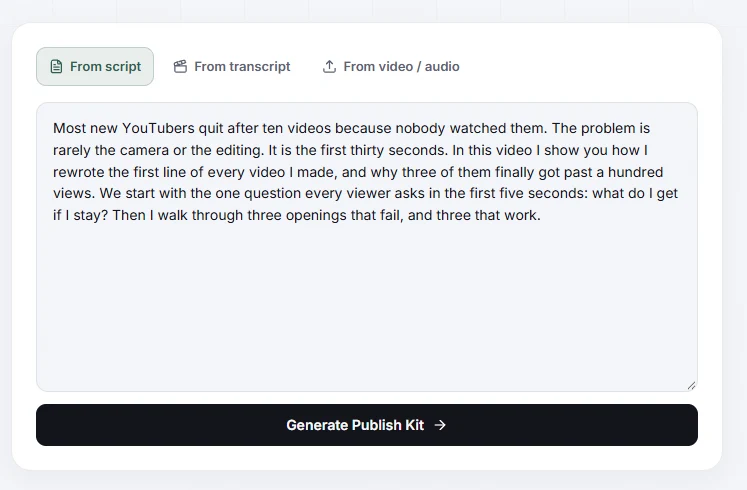
Paste the text and press Generate Publish Kit. A short script is enough to see how it works.
Step 2. Read the whole package
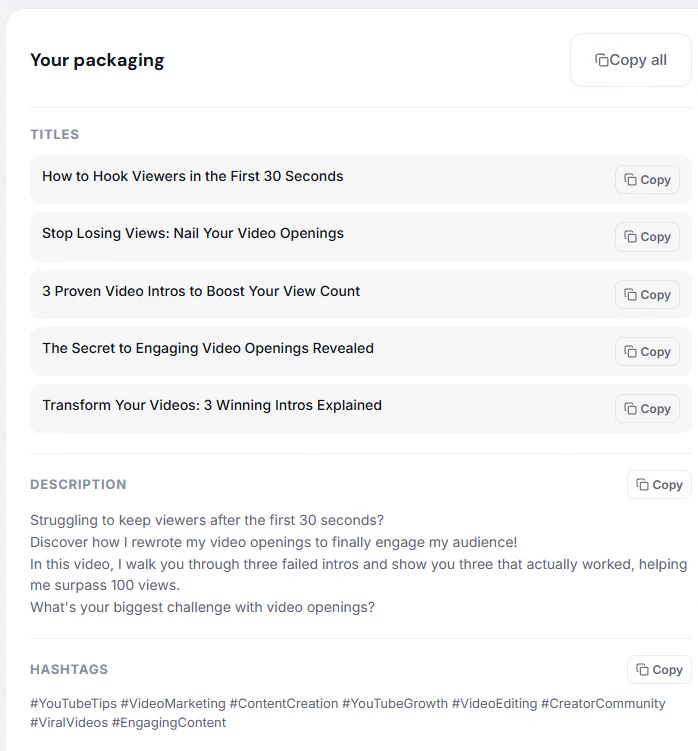
You get five title options, a description, hashtags and tags. Each block has a Copy button, and Copy all takes everything at once.
Step 3. Choose the title like a viewer
The five titles take different angles on purpose. Pick one with three checks:
- Does it make a clear promise or raise a question the video answers?
- Is it specific (a number, a mistake, an outcome) rather than a general topic?
- Can your video honestly deliver what it says?
Keep it short enough to read in full in search results. Around sixty characters is a safe target. If you like one title and want to change one word, change it: the tool gives you material, not the final answer.
Step 4. Fix the first two lines of the description
Viewers see only the start of the description before they expand it, so put the point in the first two lines: what the video shows and why it is worth the time. Links and credits go lower.
Read the generated text and replace anything that sounds like an advert for your own video. Short and plain wins.
Step 5. Treat tags as a small extra
Tags matter much less than the title, the thumbnail and the opening of the video. YouTube itself says they play a minimal role in discovery, apart from helping with common misspellings. Add the generated tags, but do not spend more than a minute on them.
The same thing inside the studio
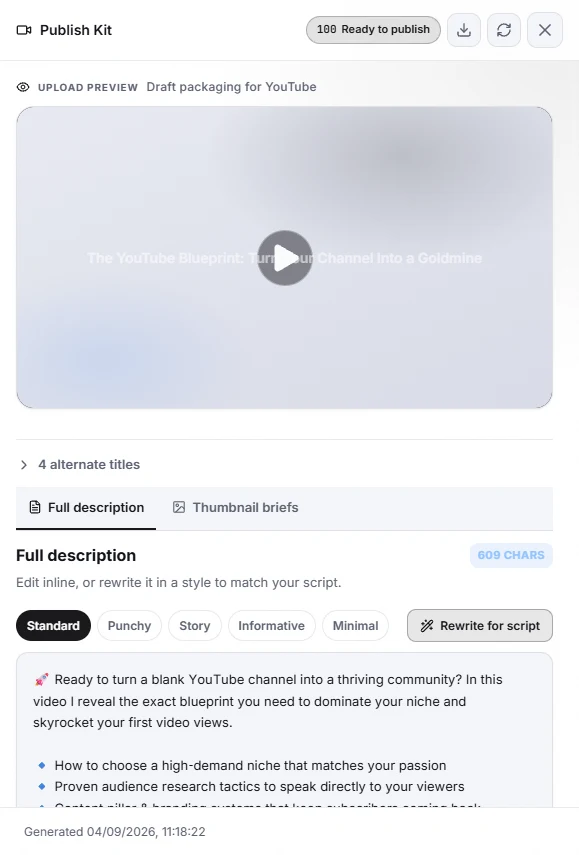
If you write your script in Cuely, the Publish Kit is one click away in the editor and it saves with the script. It adds a few things the free tool does not:
- A readiness score and an upload preview of the draft packaging.
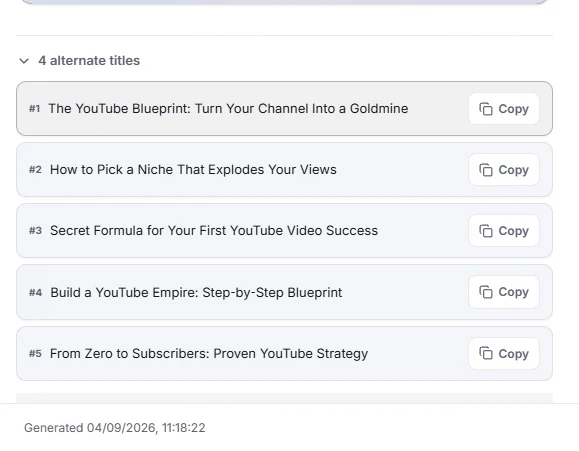
- Alternate titles with a Copy button on each.
- The description in five styles (Standard, Punchy, Story, Informative, Minimal) and a Rewrite for script button.
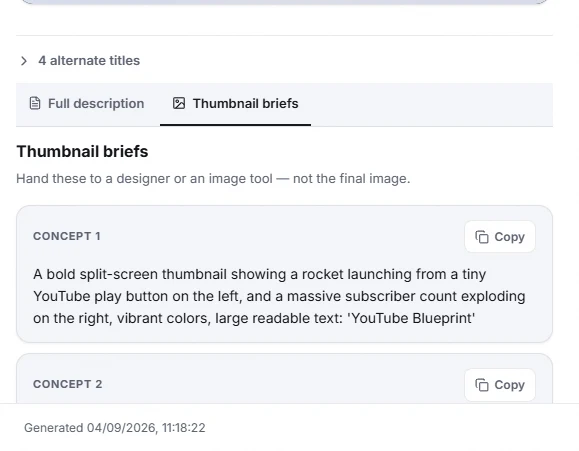
- Thumbnail briefs you can hand to a designer or an image tool.
Questions
Is the Publish Kit tool free?
Yes. You can use it without an account, within a small daily limit. In the studio, the Hobby plan includes a monthly number of Publish Kit runs.
Can I use it without a finished script?
Yes. You can start from a transcript, or upload a video or audio file and the tool works from what you say. A written script gives the most precise result.
How long should a YouTube title be?
Short enough to read in full in search results. Around sixty characters is a good target, but a clear promise matters more than the exact count.
Does Cuely make the thumbnail too?
No. It writes thumbnail briefs that you hand to a designer or an image tool. The final image is yours.